Showing posts with label Facebook. Show all posts

Twitter versus Facebook: Should you Choose One


Twitter versus Facebook: Should you Choose One?

Twitter versus Facebook: Should you Choose One


Twitter or Facebook? Or Both? In this post Steve Thornton (follow him at @stevethornton) explores the decision.

The phenomenon of social networking is still in its infancy and it remains to be seen exactly which network might become the 800-pound gorilla in the space. It is reminiscent of the dotcom 90s, when I worked in the search industry; dozens of venture-backed search firms battled for dominance and search appeared to become a commodity, with limited monetization potential, or so we all thought at the time.

There are now so many social networks vying for users that even the most elite “Digerati” have trouble keeping up with the ever-shifting landscape. And most are still struggling to find effective monetization strategies, casting doubt on their long term survival and pointing to massive consolidation at some point.


The Evolution of Social Networking Compared to Search

In the now-infamous dotcom era, Yahoo, Lycos, Excite and others evolved into portals in a desperate attempt to find ways to make money, since nobody had really found effective ways to monetize search. That was, until companies like Goto.com (which became Overture and was eventually bought by Yahoo) and Google invented the concept of paid search and contextual, pay-to-click advertising models. The rest is history and we all knew who won the war.

So it seems today that applications like Twitter and Facebook, while attracting new users at astounding rates have not fully defined their business models and the 800-pound gorilla has yet to emerge. It is still early in the game and, as with search in the mid 90s, the eventual winners in the social networking space may not even yet exist, but I would argue that Twitter and Facebook are emerging as potential contenders to dominate.

The differences between the two networks are substantial and in some ways a direct comparison between the two is actually difficult to make. Twitter is simple and feels like Google did in 1998, while Facebook offers a portal-like interface somewhat reminiscent of Yahoo.

Key Elements of Facebook and Twitter

Facebook appeals to people looking to reconnect with old friends and family members or find new friends online; the mashup of features like email, instant messaging, image and video sharing, etc. feels familiar, while Twitter is a bit harder to get your arms around at first.

Most people can very quickly grasp how to use Facebook to connect to friends and family, using it to share thoughts, images, etc. Like MySpace but more geared to adults than teens, Facebook is a social networking Portal; beckoning you not to leave but rather to stick around and communicate within the network.

Twitter on the other hand, encourages you grab ideals in byte-size chunks and use your updates as jumping off points to other places or just let others know what you’re up to at any given moment.

Why People Love Facebook

Facebook appeals to social animals and can be very addicting to people who have an insatiable appetite to stay connected with friends and make new acquaintances. In fact, some people report they rarely use email or IM tools anymore in their online social communications anymore, relying almost entirely on Facebook for email, chat, image and video sharing.

Facebook addicts prefer the social portal model versus having to log into AIM, Yahoo Messenger, Gmail, Hotmail, Flickr, YouTube, MySpace, etc. Instead, Facebook gives them a single alternative to all these applications, with one login and interface to manage their online social interaction needs. This largely explains the explosive growth Facebook continues to experience and why the company reportedly invested $200 million in data center upgrades last year to keep up with demand!

Why People Love Twitter

The usefulness of Twitter is not readily as obvious to some people as Facebook; although it may be more addictive once you get the hang of Tweeting; you get more immediate responses and it seems to live somewhere between the worlds of email, instant messaging and blogging. Twitter encourages constant “linking out” to anywhere and, in that respect, is more analogous to a pure search engine; another way to find people and content all over the Net.

Twitter has quickly built brand awareness and a loyal following, especially among the technically adept; bloggers, online marketers, evangelists, basically anyone with something to promote seem to find Twitter extremely valuable.

When asked why they love Twitter, users say like “I can ask a question and get an instantaneous response”. They crave the ability to “tap into the collective consciousness” of others on the network, bouncing ideas off others with whom they would otherwise have no means of connecting. Twitter addicts claim it’s like the old fashioned water cooler, where people can gather to shoot the breeze on whatever topic is on their minds. Twitter is like a communications stream you dive into for an invigorating swim.

Different Communication Styles for Different Social Settings

Let’s say you go to a wedding or other social gathering where lots of people know each other. The style and tone of communication there will be more like using Facebook; you chat with old friends and acquaintances, mixing and mingling in an intimate manner. In this setting, people tend to feel more relaxed and “in their element”. Conversations are familiar and center on shared experiences and connections.

Now, when you go to a large party or social event where you don’t know most of the people in attendance, you will use a very different style of communication, more like Twitter; you want to meet people and somehow make yourself known, stand out from the crowd, make an impression, self promote and make new connections. Twitter is like getting the podium and not everyone feels comfortable or knows how to stand comfortably in the spotlight.

In fact, almost all of us, when first approaching Twitter, tend to use it to post useless updates like “Going to lunch”, thinking of it as a another tool to communicate with friends, when in fact, it is more like stepping on to a stage, where you are communicating with an audience and quickly find that you need to find a voice and say something useful and interesting or quickly lose the attention of your audience. People refer to Twitter as a mini or micro blogging platform.

So Which Social Network is the Best?

While zealots will immediately point to either Twitter or Facebook as being superior, the truth is that each has its advantages and disadvantages and will tend to appeal more to different types of people and for different reasons. Each can have great or little value to anyone; it really depends on what you are trying to accomplish in a given situation. Consider some of the pros and cons of each network:

Twitter Pros

Easy to navigate and update, link to and promote anything
Reach far beyond your inner circle of friends
One feed pools all users; anyone can follow anyone else unless blocked
Pure communication tool, rapid responsiveness
You don’t have to be logged in to get updates; you can just use an RSS reader
Very interactive, extensible messaging platform with open APIs
Many other applications being developed (Twitterific, Summize, Twhirl, etc.)
Potential SMS text messaging revenue from wireless networks (although Twitter states they are not currently getting any cut)
Potential future advertising and/or enterprise subscription-based revenue streams
With its “thin” overhead, Twitter is probably more scalable than Facebook, giving it a cost advantage
Twitter Cons

Limited functionality; find people, send brief messages, direct replies
Limited to 140 characters per update
Not all people find it immediately useful
Over-emphasis on follower counts
Easily abused for spam and increasing the noise level
Relatively smaller installed user base
As yet no readily apparent monetization strategy
Facebook Pros

Application mashup; find people, make connections, email, instant messaging, image/video sharing, etc.
Most people can quickly grasp the value of connecting with friends, family and established contacts; some people report they use Facebook instead of email and IM
More emphasis on deep connections with others vs. who has the most connections
“True Friends” feature increases your transparency to selected connections; almost like having private and public profiles
Huge, rapidly growing installed user base
Inherit stickiness, third party applications, “gift giving” and personal data collection make Facebook a powerful advertising platform
Facebook Cons

More difficult to navigate and update
Requires investment of time to realize sustained benefit
Opt in model requires a user to allow others to connect
Less immediate responses; unless you stay logged on continually
Overhead of mashup and “thick” applications could limit scalability, bloat cost structure
The Future of Social Networking

In the end, both Twitter and Facebook are simply communication tools; both will continue to evolve and morph as users find new ways to extract value and either network may or may become a long term winner in the rapidly evolving social networking space. Ultimately, the fact remains to be seen whether either application has a profitable, scalable and sustainable business model or whether the exit strategy is simply to be acquired.

As we learned in the search space, consolidation will eventually prevail. Unless they can find a way to turn all those eyeballs into profits, social networks will lose relevance. It does seem obvious that the venture capitalists are betting they will not only continue to enjoy tremendous growth but will also successfully monetize all that traffic.

But, will either Twitter or Facebook become the next Google or will they fade into the rear view mirror of technological and social evolution? What do you think?
Referance: twitip.com

Adding a YouTube Channel to Your Facebook Fan Page


Adding a YouTube Channel to Your Facebook Fan Page

Have you ever wanted to feature your YouTube Channel on your Facebook Page?

I do a lot of video screen-casts and I’ve been looking for a way do do that for Expand2Web for a while.

I tried a few of the apps on Facebook but didn’t really like any of them. So I ended up building a static FBML page just featuring a few videos. But if I wanted to change any of the videos I had to edit the page.

Well just the other day, my good friend – and awesome web designer – Eileen Lonergan showed me this service called Involver. It’s just what I was looking for. It will instantly create a new tab on your Facebook page, allowing you to feature your YouTube channel.
Referance: .expand2web

Transfer photos from Orkut to Facebook direclty


Transfer photos from Orkut to Facebook direclty?
Transfer photos from Orkut to Facebook direclty

How to copy photo albums from Orkut to Facebook directly without copying to hard disk???In case you want to delete or close your Orkut account permanently, but still want your photo albums to be with you in your Facebook account, read the steps below. Using Migrakut a custom application in Facebook this can be done as explained below.


1. Login to your Facebook account and copy paste this link in your address bar
    http://apps.facebook.com/migrakut/

Transfer photos from Orkut to Facebook direclty

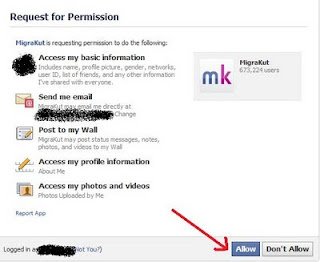
2. Then allow permission by clicking the Allow button as marked by Red arrow in below image -
Transfer photos from Orkut to Facebook direclty


3.  Then click on "Your Orkut Albums" in the next page as marked below -

Transfer photos from Orkut to Facebook direclty

4. After clicking a pop up window will come up as shown below and then cilck on Grant Access (marked by red) if you are using same mail id, otherwise sign in as a different user to log into your orkut account as marked by blue
Transfer photos from Orkut to Facebook direclty


5. I had a different Id for Orkut so I am going with Sign in as a different user. If you have same id then skip this step. Sign in with your username and password to Orkut after filling the log in window for orkut.


Transfer photos from Orkut to Facebook direclty


6. Then after logging in with your orkut username and password, select Grant access in the next pop up window.

Transfer photos from Orkut to Facebook direclty


7. Then it will go back to Facebook and show your photo albums there as shown for mine. Click on the radio button to select “Copy to Facebook”(marked In red) and then select (copy to facebook) marked in blue.

v


8. Then please wait till the photo album from Orkut is accessed.

Transfer photos from Orkut to Facebook direclty

9. Then you will get confirmation that it has been copied. You may need to refresh your browser if it do not at first instant, once you refresh then please repeat step 7 and you are done as shown in below image. You can directly see your photo album.


Transfer photos from Orkut to Facebook direclty


And you have imported all your photos in a album from Orkut to Facebook without saving it in your desktop. This is available for a single album at a time.

If you like this post, just I ask is to click on the Like button on top right.
Referance: mindhash.blogspot.in

How To Back or Recover Disable or Deleted Facebook Page


How To Back or Recover Disable or  Deleted Facebook Page
Facebook Deleted your Profile or Facebook Deleted your Page , or You have done that by mistake , Don’t worry you can get back your deleted and disabled fb pages by requesting facebook using below form.

Fill out this form if your page has been disabled.
Fill out this form if your page had a bug – accidental deletion, hack attack, etc.
Facebook is not like google , If you violated facebok policy then fb will not gone enable your page ,because there business is not related with your page.So thing before you respond , facebook is evil.

Facebook’s new, simplified 'inline' privacy settings


Facebook’s new, simplified 'inline' privacy settings
Facebook’s new, simplified 'inline' privacy settings 
In August 2011, Facebook greatly simplified its privacy controls by creating what
it calls “inline privacy settings.” 
What this means is that users will be able to control who gets to see each post,
photo or other content more easily and right when they're creating the post.
Whenever you post content, there is an opportunity to decide who can see it. For
example, you can choose to share a particular post with just your Facebook 
friends, friends of friends, a particular list (such as Family or Close Friends), a
specific friend or two or Only Me which means you’re not sharing it with anyone.
Another important change is that Facebook is dropping the term “everyone” as a
sharing option because people found that confusing. Adults can post to “Public,”
which can be anyone on Facebook or even anyone on the Internet.
In most situations, minors (users under 18) will not have the option to share
with the public. They will be limited to friends and friends of friends.

Facebook’s new, simplified 'inline' privacy settings
Whenever you post any content – a status update, a photo or anything else – you'll see
an audience selector icon. For minors, the maximum is friends of friends, but you can
restrict it further by clicking on that icon and selecting a narrower audience.
Privacy & Safety Point: Whenever you change the audience, Facebook 
keeps that setting in place the next time you post. So if you usually post to
friends but just posted something to friends of friends, it’s important to
remember to set it back to friends the next time you post. 

Special safeguards for teens


Special safeguards for teens
Special safeguards for teens 
Parents may want to know that Facebook has safety and privacy settings for users under
18 which provide them with more protection. These include:
• Search: Teens can’t be listed in public searches. Adults can, though they have
the option to opt out.
• Tagging: Only friends and friends of friends can tag teens. Anyone can tag
adults. If a friend tags a minor, the tag is visible to anyone who can see the post
on Facebook or within apps and games. If a friend of a friend tags a minor, it’s
more restrictive. In that case only the teen’s friends will see a link to the tagged
content. The ability to review tags is on by default for teens and off by default for
adults.
• Audience: The maximum audience that a teen can share with is friends of
friends. Adults can share with the public. Teens can, however, post in a public
forum, and any comments they make to a post can be seen by anyone else who
can see that post.
• Location-sharing is turned off by default, but teens can turn it on. For adults it’s
on by default.
• Subscribe: It’s not possible to subscribe to a teen’s posts or timeline because
they can’t post to the public from their timeline. Teens can, however, subscribe to
anyone’s posts.
• Friend requests: While anyone can request to be a friend of a teen, there is no
ability to include messages within friend requests to teens.
• Messages: Only friends and friends of friends can send messages to teens.
• Chat: Teens can only chat with friends.
•Advertising: Facebook will not display advertisements to teens about adult
content, alcohol, dating, gambling and lotteries, health and fitness and
subscription services.
Those are the defaults for teens vs. adults. Now let's look at the options all users
have to control their privacy in more detailed, granular ways.

Controlling who sees each timeline item


Controlling who sees each timeline item
Your teen can control who can see any item in their timeline by clicking on the
audience selector icon to the right of each listing.

You can control who sees each item on your timeline. 

Activity Log 

Your Activity Log, which only you can see, is a great tool for reviewing everything
you’ve ever shared on Facebook since the day you opened your account. Not
only can you see everything, you can also go back and adjust the privacy
settings for each “story” or post – or delete it entirely. If it’s something you want
to keep but not share, consider changing the setting to Only Me by clicking on
the audience selector icon to the right of the activity and changing the setting.

You can access the Activity Log by clicking on your name in the blue bar to the top right
of the screen and then Activity Log just below the cover photo. 

From Activity Log, you can delete or change the audience of any post, regardless of how
old it is. Notice the down arrow to the right of “All” in the upper right corner. Click on
that to review a specific category (posts, photos, etc.).

Controlling or removing what others post


Controlling or removing what others post 
Only you and your friends can post on your timeline. To turn off your friends’
ability to post, click the little down arrow  on the top right of your screen and
select Privacy Settings. Then click Edit Settings next to How You Connect and
click on Friends next to Who can post on your timeline? to change the setting to
Only Me.
You can hide or delete any posts to your timeline at any point. Hover over the
post till you see a little pencil  to the right and then click on that pencil and
select Delete Post, Hide from Timeline or Report/Mark as Spam. You can also
delete comments on your timeline by clicking on the X  to the right of the
comment.

How to Get Verified on Facebook

How to Get Verified on Facebook
Facebook has systems in place to detect any fake Profiles. Fake Profiles may be jokes (for example, someone creating a Profile for her dog), or they may be spammers (robots creating accounts to send thousands of fake friend requests). Regardless, they're not allowed on the site.

You, however, aren't fake or a spammer; how does Facebook know that? Facebook figures that out by verifying you. Now, you may start out verified, or it may take a little while. To figure out whether you still need to get verified, look at these questions:

Did you join with an authenticated e-mail address? Authenticated e-mail addresses are ones that not just anyone can get. For example, Google provides e-mail addresses to its employees that end with a specific domain name. You can't have that address unless you work for Google. Most colleges and workplaces have authenticated e-mail addresses. If you joined with one of these, you were automatically verified.

Do you have an authenticated e-mail address that you didn't join with? Joining a network with your authenticated e-mail address also serves to verify you.

Do you not have an authenticated e-mail address? You will need to get verified as you use the site.

Without an authenticated e-mail address, Facebook unfortunately has to assume the worst about you: That you may send spam or inappropriate content to people on Facebook. It's suspicious and paranoid, but it wants to trust you, so it's going to start testing you.

Until Facebook trusts you, you will continue to see CAPTCHAs when you interact with other people on Facebook. Through your normal use of the site, eventually Facebook will believe you are not, in fact, malicious, and it will stop showing you CAPTCHAs wherever you turn. You can forgo having to solve many of these by instead being verified through your mobile phone. In order to do this, your mobile phone needs to be able to receive text messages (also known as SMS messages). If you don't have a mobile phone, or it doesn't have this capability, don't worry — you'll still get verified as you start using Facebook.

To get verified via mobile, follow these steps:

Search for someone and click Add to Friends.

A pop-up appears that double-checks that you want to add this person as a friend.


Click Send Request.

A security check will appear in the form of a CAPTCHA (seen below).

How to Get Verified on Facebook

Click the Verify Your Account link (located beneath the CAPTCHA).

A new Confirm Your Phone pop-up appears, as shown below.
How to Get Verified on Facebook


Select your country and enter your mobile phone number.

Check your mobile phone for a text message that contains a code.

Enter the code into the Code field in the Confirm Your Phone pop-up.

Click Confirm.

Facebook won't send you any other mobile messages unless you choose to opt into Facebook Mobile.

If you're already verified, you won't see a CAPTCHA. You may not be able to use mobile verification if your phone can't receive text messages, but don't worry, you'll still get verified eventually just by being a normal user of the site.
Referance:www.dummies.com

Blocking People and Applications on Facebook


Blocking People and Applications on Facebook
Blocking someone on Facebook is more or less the digital equivalent of some combination of a restraining order and a witness protection program. For the most part, if you add someone to your Block list, he can't see any traces of you on Facebook.

You won't show up in his News Feed; if he looks at a photo in which you're tagged, he may see you in the photo (that's unavoidable), but he won't see that your name has been tagged. When you write on other people's Walls, that will be hidden from him, too. Here are a few key things to remember about blocking:

It's almost entirely reciprocal. If you block someone, then he is just as invisible to you as you are to him. So you can't access his Profile, nor will you see anything about him anywhere on the site. The only difference is that if you block the relationship, you're the only one who can unblock it.

This leads to an interesting fact about blocking. You might think that one person (let's call him Pedro) blocks another person (call her Lucy) because Pedro doesn't want Lucy to see what he's up to. In fact, Pedro is quite likely to block Lucy because he doesn't want to see anything about her anymore. Maybe they had a nasty break-up, or maybe he just can't stand the horrible spelling in her updates.

You can block only those people who are not your friends. If you go to a non-friend's Profile, you'll see an option to block the person at the bottom-left corner of her Profile. If you go to a friend's Profile, you'll have to remove that person as a friend before you can block her. If you block from the privacy page, you can enter the name or e-mail address of anyone, and you will automatically be unfriended (if you were friends), and that person will be blocked.

As you get going on the site, you may find out you know people who love to send a ton of application invites: "Play this game! And this game! Try this! Check out this!" You might even become that person.

But say that you don't turn out to be a big fan of using applications. Rather than block the overly friendly person who's sending you all those invitations, you can simply block invitations so that you can still interact with your friend in every other way, but you won't receive application invites. You can block both people and applications by going to the Privacy Settings page under Account. When you click Edit Your Lists underneath Block Lists, you'll see the options below.
Blocking People and Applications on Facebook


In the Block App Invites section, enter the name of the person whose application invitations you don't want to see anymore. Facebook auto-completes names as you type. After you've blocked application invites from someone, that person's name will appear in a list beneath this text box followed by an Unblock link, which you can click after that person has finally come around and stops sending you so many invites.

The Block Event Invites section works in exactly the same way.
Referance:www.dummies.com

Posting Photos and Videos on a Facebook Group Wall


Posting Photos and Videos on a Facebook Group Wall


If there's a certain photo or video you think other members of your Facebook Group would enjoy seeing, you probably want to post it to the Group's Wall. Maybe you met members of your favorite band or recently arrived back home from a trip to the Alps. Other members of the Group formed to celebrate these subjects would probably love to see your photos and videos. Show them off.

Photos
Click the Photo icon in the Publisher (at the top of the Group Wall).

The Photo Publisher appears.


Click Upload a Photo.

Choose your photo from the correct folder on your computer.

(Optional) Add a comment about the photo in the Say Something box.

Click Share.

The post then appears on the Group Wall, and all members (depending on notification settings) will be notified about your post. They can then comment and be part of what you are sharing.

If you want to take a photo of yourself and post it, do it like this:

Click the Photo icon in the Publisher (at the top of the Group Wall).

The Photo Publisher appears.

Click Take a Photo.

Pose for the camera and follow the onscreen instructions.

Remember to smile.

(Optional) Add a comment about the photo in the Say Something box.

Click Share.

Videos
Maybe you have a video from your most recent Ultimate Frisbee game or from a family trip. This is a great way to share it just with family members, and be certain they are able to see it. To post a video, follow these steps:

Click the Video icon in the Publisher at the top of the Group wall.

The Video publisher appears.

Select Upload a Video (you can also record a video if you have a Webcam).

Click Choose File.

Your computer's files will be brought up.

Navigate to the video you want and click Select.

(Optional) Type some thoughts into the Say Something box

You might want to explain why you thought the video would be of interest to your fellow members. Or you can say nothing and let the video speak for itself.

Click Share.

The video then appears on the Group Wall, and in members' notifications and News Feeds.
Referance: www.dummies.com

Upload Videos to Facebook


How to Upload Videos to Facebook
Uploading a video to Facebook involves going out into the world, recording something, and then moving it from your video camera onto your computer. Assuming you've already done that part and are now back in front of your computer, this is how to upload a video to Facebook:

Choose Photos in the left column and then choose Video.

Click the Upload Video button.

You are now on the Create a New Video page, which has three tabs running across the top: File Upload, Mobile Video, and Record Video. You are already on the File Upload tab, which is where you want to be.


Click the Browse or Choose File button and select a video file from your computer.

After you select a video, Facebook starts uploading it. This may take a while. When it's finished, you see a confirmation screen similar to the one shown below.


Click Save Info.

Depending on the length and size of your video file, your video may need to be processed for a few minutes. Leaving the page when the screen says "Your video is being processed" won't delete your video, so explore other parts of Facebook while you wait for the processing to finish.

(Optional) Select to have a notification sent to you after processing is complete.

After processing is complete, your video is posted to your Profile and may show up in your friends' News Feeds.

If you have a Webcam either built into or attached to your computer, you can also upload videos straight to Facebook.

Choose Photos in the left column and then choose Video.

Click the Upload Video button in the upper-right corner.

Select the Record Video tab.

You see your Webcam activate and the current input on the screen in front of you, as shown below. Note that you aren't yet recording.


Click the red button in the middle of the screen to start recording.

Referance::www.dummies.com


Click the button again when you're done.

Watch the preview of the clip to make sure you're happy with it.

Click Save when you're ready to continue.

Just like you can record video straight to your Profile from the Publisher, you can record video straight to your friends' Profiles and straight into messages that you send from the Inbox. From the Inbox, or from your friend's Wall, click the Video icon (it looks like a camcorder on a tripod) to attach a video and then follow the preceding instructions. When you're done, send or post the message with video like you would a normal message or Wall post.

How To Use Orkut Friends As Facebook Friends


How To Use Orkut Friends As Facebook Friends ?
How To Use Orkut Friends As Facebook Friends
 How To Import Orkut Friends In Facebook ?
How To Use Orkut Friends As Facebook Friends


If you have been using Orkut and later now started to use Facebook means, here we have the perfect solution to make your Orkut buddies friends to Facebook buddies.

Related : Microsoft Brings Facebook For Your Windows Mobile 6 Phone

•First, you have to drag this FaceBook Bookmarklet on to the bookmarks bar of your browser.
•Then this contact importer bookmarklet will appear on your Facebook homepage.
•Then Login to your Orkut account and click the Bookmarklet account button.

How To Use Orkut Friends As Facebook Friends


•Then Facebook Friend Finder tool will start scanning your Orkut contacts list and it will show you a subset who are also on Facebook. Then Click “Add Friends”. All it is done.
•Moreover, you can use this same friend finder bookmarklet for connecting Rediff contacts.

Import Contact Scripts - Facebook, Hotmail, Orkut, Rediff, Gmail, Yahoo


Import Contact Scripts - Facebook, Hotmail, Orkut, Rediff, Gmail, Yahoo

Import contacts from Facebook, Hotmail, Orkut, Rediff, Gmail, Yahoo and many more

Do you own a web site / web portal and want to import / invite friends using your members´ Hotmail, Facebook, Orkut, Rediff, Gmail contact book? If yes, integrate import contacts right away with your web site.

Want to know how Import contacts works? People will provide log in details for their Hotmail / Facebook / Gmail / Rediff accounts and we will scrape their contacts and send invitation to register or visit your web site / web portal.

There is great benefit of having this feature in your web site or web portal. It creates chain of marketing email automatically. If you integrate this feature in your web site or portal, your web site can be spread among more and more users very easily and very fast. It will really derive good traffic towards your site. On an average normal person will have at least 25 persons in their contact or address book? Think and try to visualize result of having this feature in your site.

Contact us today for Import contacts more information. You can have this feature in your site at very low cost.
Referance: www.narolainfotech.com

Facebook Marketing 8 Top Tips

Facebook Marketing 8 Top Tips

Facebook Marketing 8 Top Tips 


Facebook has now passed 620 million users and is a social media platform that can not be ignored by any brand trying to build a serious online presence.

Many companies are struggling with their Facebook marketing campaigns.  Some companies have no Facebook marketing campaigns at all!  Many companies still do not think Facebook is revelant.

If you know of a business that is still in doubt of the power of Facebook then you can tell them about these 10 reasons your business needs a Facebook strategy.

Those people looking to join up with a community of Marketers on Facebook should join our Facebook Marketing Mastermind group on Facebook!

You will find a free report at the bottom of this page called: 8 Keys To Success For Facebook Marketing.

Here is my take on the most important points in the Facebook Marketing report:

1. Set Community Expectations

This includes what fans expect from brands such as deals, tips, support or just news and information.

In terms of consistency it is important to post updates on a regular basis.  If you post updates every day for a month, then neglect them for a week, you will be running against the content expectations you have set in your community.

A few posts a week is plenty, and with this style you have enough room to plan a few weeks ahead wit what you will post.

2. Provide Cohesive Branding

Create a familiar experience for fans and differentiate your page from other brands. A great way to make your Facebook page stand out from the crowd is by offering an exclusive piece of content, such as an eBook or video, to people who join your page.

Brands must complete their profile information, upload branded logos and maximize profile pictures. Create custom features and applications that resonate with your brands theme

3. Be Up to Date

Keep interaction high with with fresh timely content. Suggestions are things like ensuring that you have the right mix of of conversational and promotional posts and updates.

Post content using the 80/20 rule: 80% should be informational, educational or have entertainment value. Only 20% of content should be specifically about the brands product or services.

4. Live Authenticity

Build trust by personalizing interactions with a human touch. Post should be written in first person, using a conversational tone.

This will enable deeper relationships and brand loyalty. Administrators should have their names and photos displayed.

5. Participate in Dialog

Connect with customers by fostering 2 way dialog. Two way dialog spurs interaction, trust and the spread of information.

When fans comment, acknowledge them and reward the individual for participation and publicly thank them for being a fan.

Direct conversations with consumers cascades to their network. Each time a fan comments on a Brand’s Facebook page, that interaction is shared with an average of 130 friends.

6. Enable Peer to Peer Interactions

Be efficient and enable the crowds help. Customers are already talking to each other and brands should enable this natural behavior.

Ask fans to respond to each other, showcase fan contributions and recognize top contributors on Facebook’s wall.  One way to do this is to have a “fan of the month” promotion.

Take this engagement to the next level by enabling Facebook’s discussion board features.  Participate in these discussions and feature “customers” top questions and answers.

7 Foster advocacy


Foster word of mouth – the holy grail of marketing. Prospects trust customers more than they trust brands, so promoting advocacy is an essential strategy.

Start by simply asking existing fans to suggest the page to others or “like” a wall post.

Take it to the next level by encouraging fans to do something on the page that is worth sharing with their Facebook , eg “voting on something” or “sounding off” or even sharing videos or photos. Create polls and contests.

8 Feature aCall to Action

Bring it back to business and provide a succinct next step. A “call to action”. Many brands fail to deliver simple calls to action that lead from fans from engagement to purchase.

The idea is is to eventually sell more of one’s product! Start with simple, yet immediate call to actions on your landing page and wall page.

Ask fans to “Like” your page, and sign up for emails or newsletters.

Lead new visitors and existing fans to custom tabs where they can view exclusive deals, browse products and make a transaction.

Check out our Custom Facebook Pages for a few examples of the custom pages we have created, and the calls to action they have featured.
Referance:www.hackingarticles.in

Export Email Addresses of your Facebook Friends


Export Email Addresses of  your Facebook Friends
Facebook turns emails into images so until recently there was no easy way to download the emails of your friends without manually copying them all out. Luckily before I did this I discovered the video below.


The video above shows how Yahoo offers a service that will automatically pull all of your facebook emails into a coma separated list.
Referance:www.hackingarticles.in

Export Email Addresses of all your Facebook Friends


Export Email Addresses of all your Facebook Friends

With the growing of social networking sites into our lives, it has indeed become necessary to care about the social networking circle that we create and nurture throughout our lives.
If you are looking for an easy, free and legal way by which you can keep a backup of the email addresses of all your friends. You can easily do this there are many applications on the Facebook that are designed to do exactly this but we will be explaining you how to export all the email addresses using the Yahoo account.
a.   First log onto address.yahoo.com and there you will be prompted for a login. Enter your credentials and then get logged in. You will be having four options namely Facebook, Gmail, Hotmail and others. Click on the Facebook link.
Export Email Addresses of all your Facebook Friends


b.  Simply enter your Facebook information once and then you will be asked for a confirmation page that will prompt you to have access to your personal information. Click on the Allow and then all your contacts will be imported on your Yahoo account.
Once you have exported all your contacts you can import them into a number of formats that are compatible with various programs. This can be performed by going to the Contacts and then select Tools and finally click on Export that will generate CSV file that can be used in a variety of applications.
Export Email Addresses of all your Facebook Friends
Referance: pctipstrickshacks.com

Hide From Some Facebook Friends


Hide From Some Facebook Friends


Appear Offline to Some of Your Friends on Facebook Chat
There might be the case when you don’t wish to chat with few peoples or in other words you want to chat with the selected one. If you get frustrated with the disturbance caused by these “No to Chat” people, in that case, Facebook provides you with the nice facility which enables you to choose the people with whom you don’t want to chat.
It’s a hidden feature which can be enabled by following these steps:
Step 1: Open your account on Facebook.
Step 2: Click on the “Chat” option which is present on the lower right side of your profile.
Step 3: There you will find two options. Choose “Friend List”.
Step 4: There you will find an option of creating a new list. Name it, for example, “Blacklisted”.
Step 6: Now, select or write the names of the people with whom you don’t want to chat.
Step 7: Set the status as offline for this chosen list.
Referance: pctipstrickshacks.com

Hide Mutual Friends on Facebook profile and timeline?


Hide Mutual Friends on Facebook profile and timeline?


Facebook recently changed their site design and I am looking to hide others from finding out mutual friends. How do I do this?

Thanks for the question. There is no way to just hide the mutual friends on Facebook, but you can hide your friends list – which will make sure that mutual friends aren’t revealed. Here’s how to do it.

Login to your Facebook account and click on ‘Account’ at the top right.
In the drop down menu that shows up now, choose ‘Privacy Settings’.


Click on ‘View Settings’ under ‘Connecting on Facebook’.


In the page that appears now, hit ‘Everyone’ (usually the default) parallel to ‘See your friend list’ and choose the appropriate setting you desire. If you are looking to hide it from everyone (including your beloved friends) choose Custom and then ‘Only Me’ under ‘These People’ in the ‘Custom Privacy’ menu.
Also, check out our post about hiding you friend list from others.
Good luck!

Change Facebook background colors.


Change Facebook background colors.

 I would like to change my Facebook background.Not sure it’s possible as all Facebook profiles layout look similar to me. Any clues?

I have addressed this issue in my post on how to modify your Facebook background colors. One of Facebook’s key features is the uniformly clean and non cluttered UI that makes the application easy on the eye, and thus, i believe that chances we will be able to customize the background layout color scheme of our Facebook is low. What we can do, is to leverage Mozilla Firefox, Greasemonkey and the Facebook Auto-Colorizer script in order to display custom backgrounds for all Facebook profiles and photo albums we browse. The pages color scheme is built dynamically in order to match the photos displayed in the page 

Important note: This trick will only work only when you access Facebook from a Mozilla Firefox browser with Greasemonkey and the Auto-Colorizer scripts installed.
Referance: nfobarrel.com